
Design Evaluation Results
Studio OP's Auto Design tasks incorporates an Auto Evaluation facility, allowing you to view categorized evaluation results for the generated design surface (in combination with the assigned topography).

An example of dump design evaluation results
If errors are generated during evaluation, they will be shown at the top of the control bar, with a reference to the pit and phase that were considered.
Pit Evaluation Results
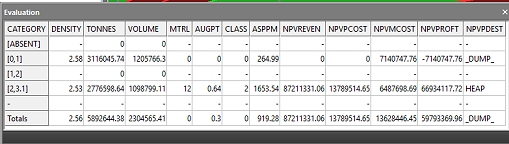
Results will be displayed in the same way as other Studio evaluation routines, such as dynamic or static evaluation commands (evaluate-wireframe, evaluate-set-of-wireframes and so on). The table will display, by the category defined in the associated evaluation legend, TONNES, VOLUME and other numerical attributes.
Where no evaluation legend has been defined (either using the Auto Design task's Advanced screen, or the Reserves Evaluate ribbon's Evaluate task), a single summary category (-) is used to summary the total tonnage and volume of the phase solid implied by the current design surface.
See Automated Pit Design.
Dump Evaluation Results
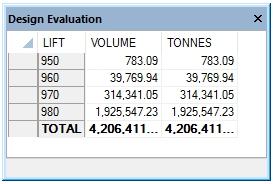
For dump designs, there is no model context so no evaluation of tonnages and grades is performed.
Instead, the Design Evaluation control bar reports the calculated volume for each defined dump lift. Lift volumes are described in ascending left elevation order from top to bottom, concluding with a grand total for both VOLUME and TONNES. The Tonnage is calculated based on the Density value specified, with corresponding values adjusted to account for a specified Swell Factor %.
Updating Evaluation Results
- The contents of this panel will update either manually (selecting Evaluate in the Auto Design task) or automatically (by generating a new design surface and enabling the Auto Evaluation check box in the same task).
- This panel is not updated by other dynamic or static evaluation commands, and the last set of generated results will be displayed in the panel until the respective Auto Design task is closed.
- The contents of this control bar will be cleared when new design data has been generated, either using the Auto Design task's Make Design Surface or Recalculate buttons.
Context Menus
The Design Evaluation control bar is supported by a right-click menu. This is used to format the contents of the control bar and to export either all of the table or a subset of data to the clipboard or a results table (in Datamine format).
The following options are available:
-
Grid format – Format the contents of the control bar table, using the Grid Format screen.
-
Copy to clipboard – Copy the selected table cells and corresponding header descriptions to the clipboard as plain text. If thousands separators are displayed, they will be included in the output.
-
Save results – Export the current table (all contents) to a Datamine binary file (.dm).
Bar Visibility
You can toggle the display of the Pit Design Evaluation output bar using the Home ribbon's Show menu.
Related topics and activities:
