
Using the Home Page
Overview
The Home page displays after logging in to CCLAS 6 and can be personalised to suit your business practices.
Using the Home page you can:
- Change Log In Credentials—You have the option to log into one laboratory. Your login credentials are changed using the Change Credentials dialog box, which can be accessed from any screen.
- Search for and launch Applications—Using Quick Launch or the Favourites widget.
Process
The CCLAS 6 Home Page Screen allows you to access CCLAS 6 applications and set various settings for your session.
CCLAS 6 Home Page Screen Layout
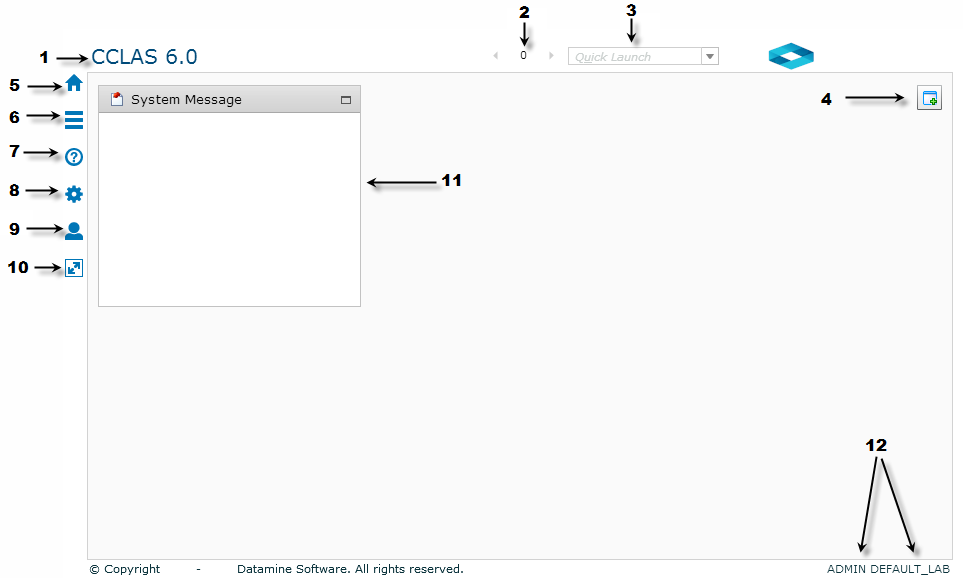
The Home page contains the following elements:
|
Number |
Description |
|---|---|
|
1 |
Banner—Displays at the top of the browser screen. The banner contains:
The banner displays on all screens accessed. |
|
2 |
Active Window Viewer—Displays the number of active application screens you have open. Click the active window icon to displays a list of active screens, as well as a list of how the screens can be arranged. Refer to Launching Applications. |
|
3 |
Quick Launch—Launches the application entered. The Quick Launch bar displays on all screens accessed. |
|
4 |
Add Widgets Icon—Displays the Add Widget screen, where you can add widgets to your Home page. |
|
5 |
|
|
6 |
Application Navigation Menu—Displays the application menus or sub-menus that are accessed as part of the log on. |
|
7 |
|
|
8 |
Additional Settings—Additional settings that control your session's behaviour. For example Trace, Preferences and so on. |
|
9 |
Change Credentials/Logout—Allows you to either log out of the session or change your district or position. |
|
10 |
Hide Banner—Hides the banner and allows you to view the full screen. |
|
11 |
System Message—The system message displays on the Home page by default and cannot be removed. The text displayed in the system message can be updated using the MSEPRF—User Preferences Detail screen, and updating the ria.system.message text (dependent upon your security level). |
|
12 |
User Credentials—Displays at the bottom of the Home page. The following credentials display:
|
 Home—Returns to the Home page,
 Help»About—Displays the following menu options:
Showing Attribute Tooltips
Use Show Attribute Tooltips to view the data attribute for fields in a screen, including a field’s associated security class name, attribute name, and any associated table codes, when hovering over a field on the screen.
The format for the tooltip is <class name>:<attribute name>, Table:<file><table type>.
Notes:
A tick (check mark) displays beside the Show attribute tooltips text to indicate the option is turned on.
The show attribute selection only lasts for the current session.
Changing the Colour Scheme Theme
Use Themes setting to change the colour scheme theme of the banner displayed at the top of the CCLAS home page and application screens.
 Change a screen colour scheme theme
Changing the Font Size
Use Font Size to increase or decrease the size of the screen font.
Allowing Microsoft Office Plugins
Use this option to allow access to Smart Excel.
Visual Studio Tools for Office Runtime (VSTO) and Microsoft .Net Framework 4.5 or above (Standalone Installer) must be installed before you can run Smart Excel. The following plug-in option is available:
- Smart Excel Plugin—This plug-in allows you to interact with CCLAS using an Excel spreadsheet.
Viewing System Messages
The System Messages widget displays the welcome message for the CCLAS environment. It contains information that may be important for the running of CCLAS in the laboratory.
The System Messages widget is indicated by the pin-up messages icon: 
This widget cannot be removed from the Home page.
 Related processes...
- Getting Help for CCLAS
- Logging in to a Laboratory
- Using the Screen Interface
- Working with Activity Statuses
- Working with Scope and Codes
- Exporting Grid Content to a Spreadsheet
- Configuring CCLAS Menus
- Personalising Screens
- Customising Screens
- Maintaining Customised and Personalised Screens
- Maintaining Category Types
- Reporting in Alternate Languages
- Activating System Languages
- Maintaining System Table Codes
- Maintaining System User Preferences
- Maintaining Application Preferences
- Maintaining System Table Localisations
