
Pivot Options: General
To access this screen:
-
Display the Pivot Options screen and click the General tab.
Use the General tab of the Pivot Options screen to control how the pivot table is built and how totals and data are shown. These settings change the layout and content of the pivot table on the main Pivot Table screen.
Activity steps:
-
Display the General tab.
-
Choose Datasource options:
-
Select Standard to build the pivot table manually.
-
Select Macro to build the pivot table automatically with a macro, if macros are enabled in the application.
-
-
Select Show Row Total to show a total for each row group in the pivot table.
-
Select Show Row Grand Total to show an overall total for all row values.
-
Select Show Column Grand Total to show an overall total for all column values.
-
Select Show Domain Function to show domain function information in the pivot output, where this is available. For example, if the Data Area tab lists
Total Costas the only data item with a Summary Type ofAverage, and this option is checked, the following appears: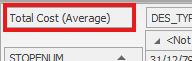
-
Select Hide fields with value 0.0 to remove fields or results that contain zero values from the pivot display.
-
Select Show data fields in rows to display data fields as row items instead of column items.
-
Review the pivot table on the main Pivot Table screen to confirm that the totals and layout match the result you need.
-
Save your project.
Related topics and activities:
