
Licensing issues
General Issues
- The application doesn't start: check your graphics driver and OpenGL compatibility.
- Crash at launch: configuration files may be corrupt, or license is missing.
- No license window appears: activation might have been blocked by antivirus or firewall.
Before checking license problems, ensure:
- The system date and time are correct
- Old license files are removed before installing new ones
- File names contain no spaces or special characters
RLM / Geovariances License Issues
No license available
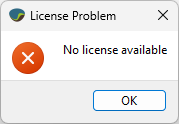
This message appears when Isatis.neo cannot find or use a valid license. Possible causes:
- No license has been registered yet (first launch)
- License is expired, incompatible, or invalid
- MAC address or dongle has changed
- The license server is unreachable (port blocked, service down)
- The license file does not match your version of the software
- All licenses are already in use
Common RLM error codes
- -3: License expired
- -6: License file incompatible with software version
- -18: Conflicting cloud licenses — delete all
cloud*.licfiles - -22: All licenses in use — wait or free one
- -28: Installed version too old — update the software
A full list of codes is available in the RLM administration manual, located in the folder:
C:/Program Files/Geovariances/Isatis.neo/license/
Using the Diagnostics Tool
Click the Diagnostics button in the activation window (GVlictool) to generate a technical report. This text file lists all detected licenses and error codes. You can send it to our Support team for help.
Identify your license type
The diagnosis depends on the type of license you are using:
- Single-user: local license file on your computer
- Site: license managed by a server in your network
- Cloud: license retrieved from Geovariances’ cloud server
 Checking a single-user license
Look for a file named geovarXXX.lic in the following folder:
C:\Program Files\Geovariances\Isatis.neo\license
The most recent file (highest number) is usually the one used. Open it and check the version number and expiration date.
Use the Diagnostics button to check for RLM error codes. For example, error -3 means the license has expired.
A full list of codes is available in the RLM administration manual, located in the same folder.
Checking a site license
You should find a server.lic file in the same license folder.
This file specifies the server name and the port number. Example:
HOST Cleopatra ANY 5053
Open a web browser and connect to the RLM webtool (typically http://Cleopatra:5054).

Check license status, usage, and whether the License Manager is running. If access is blocked, ask your IT for help.
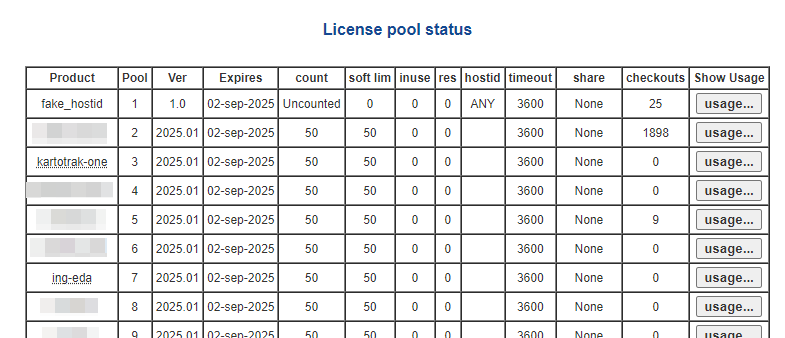
Note: The default port (5053) may be different if your IT team has customized it during installation.
Checking a cloud license
Look for a file named cloudXXX.lic in your license folder.
This file defines the cloud server address and port. Example:
HOST anonymous.lm.geovar.cloud ANY 5053
Only one valid license file should be kept. Delete older or conflicting ones.
Use the Diagnostics tool to detect error codes like -22 (all licenses in use).
Offline Activation
If your computer has no internet access, or if proxy/firewall rules prevent license activation, you can use offline mode:
- Click the Offline Activation button to generate a file like
1234-5678-1234-5678.alic - Transfer this file to a computer with internet access
- Go to Geovariances Products Activator
- Upload the
.alicfile and download the license file (.lic) - Copy this file back to your computer and use Install a License File to apply it
Note: This method is useful if:
- You are working on a sealed/offline network
- Your proxy requires authentication not compatible with RLM
- Your antivirus or firewall blocks the activation process
Dongle-related licenses
- Used when MAC addresses are unstable (e.g., virtual machines)
- Applies to both site and single-user licenses
- License is bound to the dongle ID instead of MAC address
- The dongle must remain plugged in during software use
Communication between server and clients
When using a site license, the client must communicate with two services on the license server:
- rlm.exe: main service (default port: 5053)
- geovar.exe: Geovariances ISV service (uses a random or fixed port)
If communication is blocked (firewall, antivirus, port conflict), the license may not be available. IT can customize the ports if needed.
Changing the port used by rlm.exe
Edit the HOST line in both the server and client .lic files:
HOST Cleopatra ANY 5053
Restart the License Manager using the RLM web tool to apply changes.
Note: When generating a new license, the default port 5053 is always written — update it again manually if needed.
Change the port used by geovar.exe
To fix the port used by geovar.exe, add this line to the license file:
ISV geovar port=64175
Restart the License Manager via the RLM web tool to apply.
Note: When updating the license file in the future, this line may need to be re-added manually.
Datamine License Issues
Connection problems
- License server not found: check server address and port in Tools > Remote Server Options
- Firewall or VPN blocking access: ensure traffic to the defined port is allowed
- License key rejected: check for typos or expired key (25-character format)
Site license (remote server)
- Open the Datamine License Manager as Administrator
- Go to Tools > Remote Server Options and enter the correct server and port
Note: The port is defined by your IT; it is not standardized
Enabling the Datamine licensing system
Isatis.neo selects its licensing system based on the file options.ini.
To use Datamine licenses, this line must be set:
[General]
DmLicServices=true
File location:
C:\Program Files\Geovariances\Isatis.neo\license\options.ini
Note: If set to false, Isatis.neo will attempt to use the legacy RLM system instead.
Other recommendations
- Only one license key should be active at a time
- Remove any unused or expired keys from the license manager interface
- If switching from RLM to Datamine, restart Isatis.neo after modifying
options.ini
