
Neighborhood Explorer
Click the Neighborhoods tab from the Isatis.neo Main Interface to access to the Neighborhoods explorer where all the neighborhoods are listed. From this panel you can create, edit, copy, rename, report or delete neighborhoods.
-
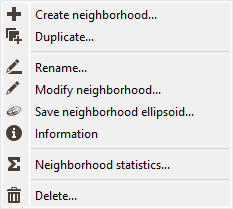
Right click a neighborhood to display the contextual menu:
- Click
 Create neighborhood to pop up the Neighborhood Parameters Definition and create a new neighborhood.
 - Click
 Duplicate to save a copy of the selected neighborhood.
 - Click
 Rename and enter the new name for the highlighted neighborhood.
 - Click
 Modify neighborhood to edit the different parameters of the highlighted neighborhood. The Neighborhood Parameters Definition will pop up.
 -
Click
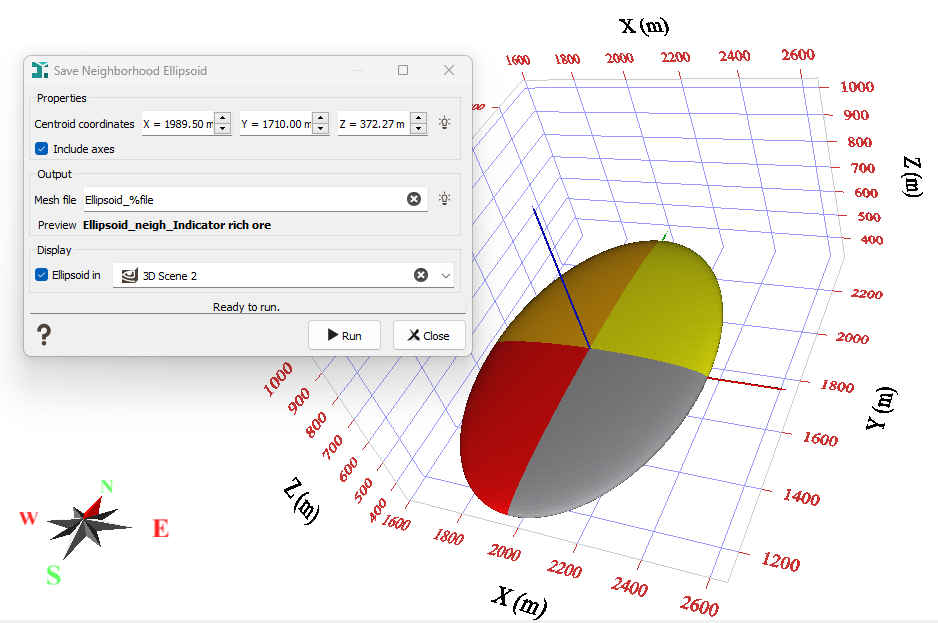
 Save neighborhood ellipsoid to generate the ellipsoid of the selected neighborhood as a mesh file. This action is only accessible for the neighborhoods defined in 3 dimensions (3D) and using the mode "Select samples from an ellipsoid". The 2D neighborhoods and those based on the target block cannot be used.
The coordinates of the ellipsoid centroid can be set. An option allows the user to create the axes as part of the ellipsoid itself, to fully understand the rotation, if any. The ellipsoid size, sectoral division, and vertical split, correspond to the parameters defined in the input neighborhood. The distinct colors are automatically chosen, but can be customized. After the run, the ellipsoid is created as a mesh object in the Data explorer.
-
Click
 Information to display the different neighborhood parameters in the Messages window.
Note: Neighborhoods referring a non-existing information (data table, a variable used for capping or a variable to spread over categories) are identified with a specific icon
 .
. - Click
 Neighborhood statistics to open the Neighborhood Statistics task. These neighborhood statistics correspond to the statistics of the samples actually selected by the neighborhood of each sample of the output data table. Different variable results are computed which can be used to improve the classification of the output.
 - Click
 Delete to definitely remove the highlighted neighborhood from the project.
- Click
-
Click
 Group by data table to group together neighborhoods that are built from the same data table. Otherwise neighborhoods are organized by alphabetical order. Geostatistical sets referring to a non-existing data table are grouped in a dedicated folder Non existing data tables.
-
Click
 Collapse all /
  Expand all to respectively hide / show the content of all neighborhoods in one click (directory, data table, variable to spread over categories, variable used for capping).
