
Capping
The objective of the Capping functionality is to cap data that are above or below a given threshold.
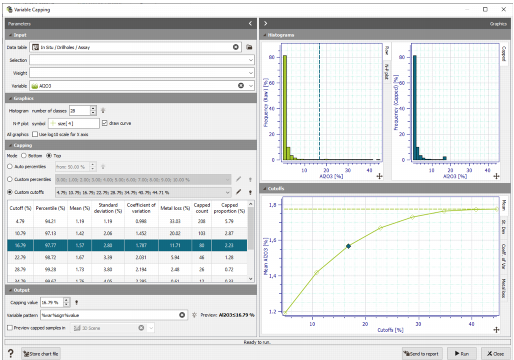
The Capping window is divided into two areas: one the left are the parameters and one the right are the graphics. Sections are used to separate groups of consistent content. All the sections can be reduced by clicking on the arrows of the title bars.
-
Input
- Select the Data Table as well as the Variable on which the capping will be performed.
- Optional Selection and Weight can be defined. When provided, they are applied to all the calculations (graphics and statistics table).
-
Graphics
- Select the Number of Classes you want to use to calculate the histograms. The same number of classes is applied for both the raw and capped histogram.
- Select the Symbol shape and size of the points in the N-P plot.
- Tick the Draw curve toggle to display the line between the points in the N-P plot. The line is activated by default.
- Tick the Use Log10 Scale for X axis option to apply the corresponding transformation on the X-axis of all the graphics.
-
Capping
Two modes are available:
- Bottom: A lower limit is set. Values that are below the threshold are set equal to it.
-
Top: An upper limit is set. Values that are above the threshold are set equal to it.
To help defining the capping value (or threshold), it is possible to create a range of test values based on different processes: Auto Percentiles, Custom Percentiles, or Custom Cutoffs.
For each test value, data that are above (or below in the bottom cap case) the cutoff/capping value or the corresponding percentile, are capped. Several statistics are recalculated following the capping operation. All these tests are gathered in a table.
- The Auto percentiles process defines automatically a range of test values between the 50-percentile (respectively 0) and the 100-percentile (respectively the 50) in the Top cap mode (respectively Bottom cap mode) with an increment of 5%. If the default value is modified, a range of test values will be created from the defined percentile value to the 100-percentile in the Top cap mode or from the 0-percentile to the defined percentile value in the Bottom cap mode with a constant increment.
- The Custom percentiles process defines automatically a range of test values from the 90-percentile to the 100-percentile in the Top cap mode and from the 0-percentile to the 10-percentile in the Bottom cap mode.
-
The Custom cutoffs process defines automatically a range of test values from the minimum value of the selected variable to the mean in the Bottom cap mode and from the mean to the maximum value of the selected variables in the Top cap mode.
Note: Percentiles are values that divide a set of data, rank ordered from the smallest to the largest, into 100 equal parts.
Click on
 to set default values for the lists.
Click
 Edit to pop up the Value Definition window and customize the list of percentiles or cutoffs.
 In the Statistics table are printed:
- the cutoff value and its associated percentile
- the mean
- the standard deviation
- the coefficient of variation
- the metal loss in the Top cap mode, or metal gain in the Bottom cap mode. It is computed as: abs(original_mean - new_mean) / original_mean
- the capped count (number of capped samples)
- the capped proportion (percentage of capped samples).
-
Output
- Select the Capping value (threshold) to be applied to the data.
- Enter a Pattern to name the output capped variable. The default pattern is %var%sign%value. The preview of the output name is printed next to it.
- Activate the Preview and select an existing scene to visualize the capped samples and the untouched ones in a scene. It can be useful to detect clusters of very high / low values.
-
Graphics
-
Histograms are displayed on the top right.
There are two histograms: one of the raw distribution in green and one of the capped distribution in blue. The capped distribution does not contain data above/below the given capping value.
The Normal-Probability plot (N-P plot) is also available as a decision-making tool. It is reachable by clicking on the N-P plot tab, stacked below the raw histogram.
The capping value is indicated on the Raw Histogram and the N-P plot by a blue vertical dashed line.
-
Cutoffs graphs are displayed on the bottom right.
The evolution of the Mean, Standard Deviation, Coefficient of Variation and Metal Loss/Gain can be checked on these graphics. Use the different tabs to display the one you are interested in.
-
Interactivity
The Capping value can be selected on the different Histograms or Cutoffs graphs by clicking on a histogram class in the raw histogram or on a diamond in the cutoffs graphs. It is also possible to select a cutoff line in the Statistics table. You can also directly enter a Capping value in the Output parameter section.
The picked point in the graphic and the statistics table are highlighted accordingly.
Note: If the picked Capping value does not already exist in the statistics table, a new line corresponding to this test value will be created.
Remember that flying your mouse on a graphic window makes appear a tool bar where actions may be selected (for more information, see the documentation on Graphical Options).
-
Press Run to validate the capping and create the capped variable in the input variable’s data table. Its name corresponds to the one defined by the Pattern.
The graphics and tables can be saved in a Chart File using this particular format (using the Store Chart File button available in the task window).
