
MSO Scenarios
MSO processing runs relate to a particular scenario.
A scenario contains all of the settings required for each MSO "run". When you start a processing run, you are essentially "running a scenario".
Scenarios are created on the Manager screen and can be summarized using the Scenario Summary screen.
The Manager screen is always available (but can be hidden and displayed as required) as a vertical banner on the left of the MSO screen:
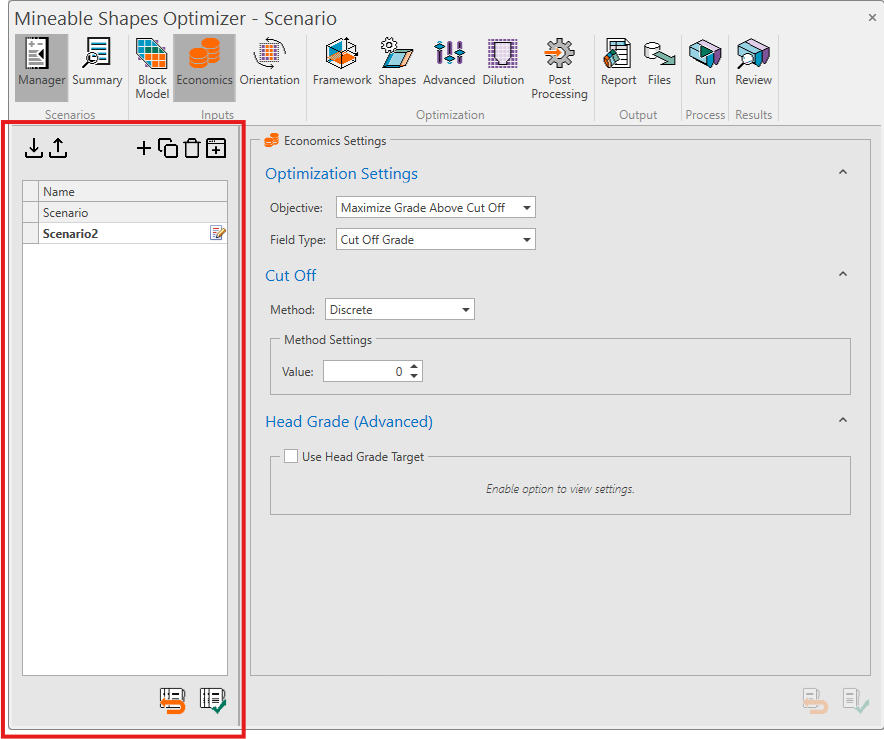
The Manager screen displayed alongside the Economics screen.
There is no theoretical limit to the number of scenarios you can create. It can be useful, for example, to make several copies of a base scenario and test the impact of specific parameter changes on output shapes and results. It is possible to queue multiple scenario runs and process them as a batch.
Scenario Settings
Scenario settings are stored in XML configuration files that can be imported and exported to and from other systems. Your configuration files are referenced by your Studio project and reinstated each time the project and MSO are reopened.
Selecting a different scenario updates the contents of the current workflow screen (Economics, Framework, Shapes and so on) automatically. This makes it easy to quickly compare specific setting values between scenarios.
Summary
This part of the MSO workflow is used to:
-
Manage single or multiple optimization cases, compare configurations, or open several instances for parallel design work.
-
Swap between existing scenarios, automatically updating all other docked or floating MSO windows.
-
Copy, delete or rename a scenario.
-
Import and export scenario settings.
