
The Table Editor Interface
The Table Editor is similar in appearance to a spreadsheet, and for anyone familiar with recent versions of common spreadsheets or databases there are few surprises.
The Table Editor user interface contains the following key items:
Title Bar
The Title Bar identifies both the program and the data loaded in the program. In the example, the data displayed in the DatamineTable Editor are from the "_collars.dm" table. If no data are loaded, the data name defaults to "Table 1".
The title bar carries the standard Windows control icons:
|
|
Minimize the program window to a button in the status bar. |
|
|
Maximize the program window to occupy the full screen area. |
|
|
Restore the program window size to that favored by the user. |
|
|
Close the program. |


Menu Bar
The Menu Bar provides access to all the Table Editor commands through a logical menu structure which is described in detail in Table Editor Menus, which also lists icon and keyboard shortcuts.
Tool Bar
The Tool Bar gives access to the most common tasks with a single mouse click. All the common commands have an icon and the tool bar may be customized to reflect personal preferences. All the icons are shown with a description of the command in Table Editor Menus.
Grid
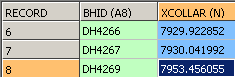
The Grid is where the data are displayed in a table of rows (records) and columns (fields). The selected cell is identified by a change in the background color of the column and row names. Data may be selected by clicking in a single cell, by clicking and dragging over an area, or by clicking at one end of a selection, pressing the Enter key and clicking the other end of the selection.
Task Pane
To display the Task Pane, right-click in the tool bar or menu bar areas and select Task Pane from the context menu. The Task Pane has two purposes:
|
Option |
Description |
|
Open a document |
Lists recently used Datamine tables and permits browsing through Double-click a table to load its data into the editor |
|
Insert definition |
Lists definitions for the standard Datamine table types: block model, wireframe triangles etc. It also permits browsing for other definitions through: More Definitions... and Double-click a definition to add it to the current table |


Note: Task Pane behaviour may be toggled between being anchored on top and being hidden automatically by selecting the respective pin icons.
Status Bar
The Status Bar shows the current status the program, the loaded table and the keyboard settings of the computer. Some of these values can be changed directly from the status bar.
|
Category |
Information |
Actions |
|
Program |
Program status (for example, Ready) Description of menu option or toolbar button highlighted by mouse |
None |
|
Table |
Record and Column co-ordinates of the selected cell |
Double-click to open the Go To dialog to navigate elsewhere in the table |
|
Data precision of the loaded table |
Double-click to toggle between extended and single precision |
|
|
Table attributes, for example, read-only or writable |
None |
|
|
Keyboard |
Caps Lock status. On or off |
Double-click to toggle |
|
Numeric Lock status. On or off |
Double-click to toggle |
|
|
Scroll Lock status. On or off |
Double-click to toggle |
Related topics and activities