
Create a Web Interface
Prerequisites for This Topic
-
Read the Getting Started page and follow the examples provided.
In the following exercise, you will complete the steps required to create a custom interactive Table Editor deployed on a web page. The web page is subsequently loaded as a script into a Studio Customization window, although in practice, it could be launched from a standalone Internet Explorer application.
The resulting Column Editor is a cut-down version of the original, and features functions that allow you to select a column, list its properties, amend them and commit the changes back to the table. You can also navigate the recordset using a series of buttons at the bottom of the form.
At the end of this exercise, you'll see something like this:
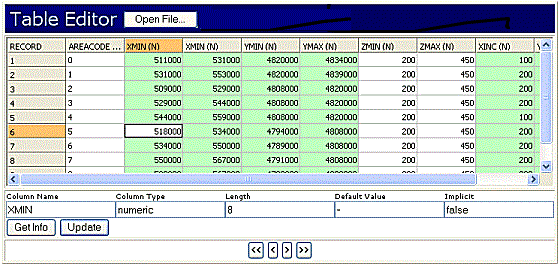
The following functions and properties are investigated in this walkthrough:
-
OpenFile()
-
UpdateColumnX()
-
MoveFirst()
-
MovePrev()
-
MoveNext()
-
MoveLast()
-
CurrentColumn
-
ColumnName
-
ColumnType
-
ColumnLength
-
ColumnDefault
-
ColumnImplicit
Create the Interface
The following instructions demonstrate using HTML and embedded JavaScript, with the Table Editor Component, to specify a new presentation layer for editing functions. The approach used is outlined below:
-
Global functions are declared in the <HEAD> section of the page.
-
The Table Editor ActiveX control is embedded within the <BODY> section.
-
Various form controls are added to allow access to the global functions previously defined.
Note: As HTML pages are not interpreted on a line-by-line basis during execution, steps 2 and 3 can be interchangeable - the ActiveX control can be situated anywhere on the page, before or after other controls providing access to the underlying methods and properties.
Set up the <HEAD>
-
Set up the basic Header section tags, specify a title and open a JavaScript block:
<HTML>
<HEAD>
<TITLE>Column Editor</TITLE>
<SCRIPT LANGUAGE="javascript"> -
Next, you will need to provide the JavaScript functions you will be calling when the form buttons are clicked. First, set up the OpenFile() function. In this example, you will be using the function in a slightly different way to that defined on previous pages. Up to now you have passed in a named file path to automatically load a particular file, however, you can also force a File Open dialog to show by setting the FileName parameter as an empty string, for example:
function OpenFile()
{
DmEditX1.OpenFile("", false, false);
}
When the Table Editor component is embedded, it will be assigned an ID of "DmEditX1". You do not have to match your function name to the method on DmEditX1, but it is important that the calls to the Table Editor control are 'wrapped' in a JavaScript function, or errors will occur when running the script. The two 'false' parameters following the empty file name string determine that the loaded file is not to be opened as read-only, and secondly, the file will not be fully cached in memory on loading.
-
The next series of statements declare functions to allow the loaded recordset to be traversed, and are simple parameter-free calls to the Table Editor control. Note that the resulting controls on the form simply shift the focus of the table to one particular row, allowing it to become selected (or, in the language of the Table Editor script - 'becomes current'):
function EditMoveFirst()
{
DmEditX1.MoveFirst();
}
function EditMovePrev()
{
DmEditX1.MovePrev();
}
function EditMoveNext()
{
DmEditX1.MoveNext();
}
function EditMoveLast()
{
DmEditX1.MoveLast();
} -
The next declared function - GetInfo() - allows you to return details of the currently selected row in the Table Editor control and store it in form text fields (in this case, individually named for each property).
Once a row has been selected (either interactively or by the script controls defined in step 3) there are several standard properties that return useful information about the selected column or row. This particular tutorial deals with details of the selected Column, although in the Further Examples section, you can see an instance of where the row (the actual recordset data) is returned.
In this tutorial, orphaned form controls (not surrounded by a <FORM> tag) will be used to display the returned information. There will be five text fields in total (you can see them directly below the Table Editor control in the image at the top of this page):
-
Column Name: the string description of the selected column.
-
Column Type: numeric or alphanumeric.
-
Length: the maximum length of the data permitted within the column.
-
Default Value: the default value of the column.
-
Implicit: either true or false (and, therefore, explicit).
-
The function to return column details is as follows:
function GetInfo(){
var objIndex = DmEditX1.CurrentColumn;
var objName = DmEditX1.ColumnName(objIndex-1);
var objType = DmEditX1.ColumnType(objIndex-1);
var objLength = DmEditX1.ColumnLength(objIndex-1);
var objDefault = DmEditX1.ColumnDefault(objIndex-1);
var objImplicit = DmEditX1.ColumnImplicit(objIndex-1);
this.NameField.value = objName;
this.TypeField.value = objType;
this.LengthField.value = objLength;
this.DefaultField.value = objDefault;
this.ImplicitField.value = objImplicit;
}
The actual form controls haven't been defined yet (this is done in the <BODY> section). The function itself is divided into two sections; variable declaration and storage of Table Editor control properties, and the posting of these details back to the (as yet undefined) HTML form (this.FieldName = objName).
-
The above function returns values from the embedded control and posts them to the form, the next function - UpdateCol() does the opposite; it reads the current details on the form and updates the Table Editor control (and subsequently the display) according to whichever values are present. The form controls that will be defined will be editable, allowing column details to be changed:
function UpdateCol()
{
var objIndex = DmEditX1.CurrentColumn;
var objName = this.NameField.value;
var objType = this.TypeField.value;
var objLength = this.LengthField.value
var objDefault = this.DefaultField.value
var objImplicit = this.ImplicitField.value
DmEditX1.UpdateColumnX(objIndex, objName, objType, objLength, objDefault, objImplicit);
}
</SCRIPT>
</HEAD>
The first section of the script defines separate variables for each column type, populated with the contents of each of the five text form controls, plus one property - ObjIndex - to return the index of the column that is currently in focus (if one is not selected, '-1' is returned (this index is zero-based, and does not apply to the static Records field in a table, hence, if the first valid column is selected, it has an index of zero - however, this column will be the second one that appears in the table editor (the Records column is also shown, but does not form part of the index).
Note the call to the proprietary method UpdateColumnX() - this method accepts the defined column index, name, type, length, default value and implicit/explicit boolean and performs a table update with no further prompts, making it a transparent method (and carrying an 'X' suffix). Also worthy of note is the use of the JavaScript this statement, inferring a pointer to the default Window class of the Document Object Model.
-
All functions for this script are now defined. The remainder of the script provides the HTML interface to allow these functions to be called. You can define the interface however you like, but for the above functions to work, you will need to provide five editable text form controls as a minimum, named: NameField, TypeField, LengthField, DefaultField and ImplicitField.
The remaining scripts elements should be familiar to anyone versed in HTML, but basically is split into the following sections:
-
Firstly, a button is provided to allow a file to be loaded into the Table Editor control. This function - OpenFile() has been defined in Step 2. This function makes a call to the Table Editor control's built-in method of the same name. There are two ways to use this method, and in effect, is a hybrid of transparent and opaque methods; if a file path is passed to the function, along with the parameters to set ReadOnly and CacheAll parameters, the file can be opened (loaded) without further user input. However, if no file name is passed, only an empty string, the Open File dialog is shown (it is this behaviour that will be initiated in this example, as defined by the OpenFile()function):
-
In this example, you are going to embed the Table Editor control (as first shown in "Embedding the Table Editor in a Web Page" in the Getting Started section). Note that this is an example only, the Table Editor control can be added at any position on the web page:
The <OBJECT><.../OBJECT> tags control the actual embed, and is important that you specify the Class Identifier (classid) exactly as shown above. The id of the control is also important as it is referenced in the global functions defined initially. You can change the id if you wish, but be sure to edit the function calls described in steps 4) and 5) accordingly.
-
The next step is to add some table and form elements to display the information returned:
<TR>
  <TD>
   <table width="100%" border="0" cellspacing="0" cellpadding="0">
    <tr>
      <td width="20%">Column Name </td>
      <td width="20%">Column Type</td>
      <td width="20%">Length</td>
      <td width="20%">Default Value</td>
      <td width="20%">Implicit</td>
    </tr>
    <tr>
      <td><input name="NameField" type="text" value="-"></td>
      <td><input name="TypeField" type="text" value="-"></td>
      <td><input name="LengthField" type="text" value="-"></td>
      <td><input name="DefaultField" type="text" value="-"></td>
      <td><input name="ImplicitField" type="text" value="-"></td>
    </tr>
   </table>
-
Next, some HTML to add some interactive buttons to retrieve and post column property information for the selected column. This particular section of the script makes use of the onClick event associated with form controls in the DOM (most visible elements provide the same support for onClick - you could easily extend this script to provide a multi-stage branded rollover button, for example).
Two buttons, two function calls; one will make a call to GetInfo() (to return the values of the selected column from the control) and the second will be used to post the current form control data back to the object - UpdateCol(). Both are custom functions defined in the header section (in steps 4 and 5), with both defined functions making calls to proprietary methods on the Table Editor ActiveX control:
Note the use of the return false statements; this is a standard JavaScript expression to determine how the onClick handler is used; basically, you're asking a question of the function; "Should the function do what it normally does?" - in the case of a hyperlink, this would be to go to a designated URL, or in the case of a form button, this would normally be to submit form data (these are default behaviours). By specifying 'return false' - you are effectively switching off the default behaviour for the control, and allowing the onClick handler to launch a custom function, and do nothing else.
-
Finally, this example provides four recordset navigators to allow you to skip forwards and backward between rows (records) within the loaded table. These form buttons are provided for example only, and simply demonstrate the way a control on an HTML form can affect the status of an embedded control dynamically. As the dialog you are creating is to be used to edit and view the settings for a particular database column, not a row, these functions have limited usefulness (the script could, however, be easily extended to allow the actual recordset data to be returned/edited - see the Further Examples section for an instance of this type of script).
Table row controls, and closing off the script:
<TR>
  <TD height="29" align="center" valign="top">
   <input type="button" value="<<" name="btnMoveFirst" onClick="EditMoveFirst(); return false;">
   <input type="button" value="<" name="btnMovePrev" onClick="EditMovePrev(); return false;">
   <input type="button" value=">" name="btnMoveNext" onClick="EditMoveNext(); return false;">
   <input type="button" value=">>" name="btnMoveLast" onClick="EditMoveLast(); return false;"></TD>
  </TR>
</TABLE>
</BODY>
</HTML>
The interface script is now complete. You can use this example as a base for adding further functionality. For more information on the other methods and properties available, please refer to the online API reference topic or the Further Examples section.
The Full Script
To see this script in full, click here.
Related topics and activities