
Haulage Exit Benches
To access this screen:
-
Optimization control bar >> Scheduler >> Haulage Info and select the Exit Benches tab.
Check and export pushback bench exit data to a .csv file. A tab exists for each pushback source (mine, stockpile, or dump site).
Exit benches are defined for each selected mine. .
The bench exit points are defined by their world coordinates (XYZ). You must define at least one exit bench for each pushback - you can check this by clicking Check Complete.
Note: The maximum allowed number of exit points is 100.
To define an exit bench for a mine:
-
Display the Exit Benches screen.
-
Expand Choose pushback: to select a pushback for which the exit points will be defined.
-
Enter XYZ coordinates for each exit bench (represented by a row in the table).
Note: You can type or paste coordinates copied from a spreadsheet. At least one row of the grid has to be filled, and there is no limit to the number of coordinate locations you can specify.
-
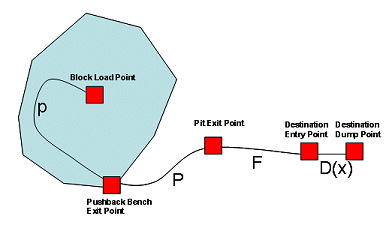
For each exit bench, specify a Factor: In pits with relatively large benches and short surface hauls, the bench hauls may not be directly from the block to the bench exit point and can be a significant component of the overall cycle time. In addition, the haulage speed on the bench can be slower than the average flat haul speed.
-
Click Check Complete to validate your data.
-
Optionally, click Export to csv file to create a comma-delimited external file with bench exit locations. This can be useful for import to other systems and projects.
-
Review and (if required) edit other haulage settings using other tabs.
-
Click OK and save your project.
Related topics and activities
