
Color Scale Explorer
Click the Color Scales tab from the Isatis.neo Main Interface to access to the Color Scale
All the color scales are listed in the Color Scale  , and the application color scales (for displaying gaussian and selection variables), which are read only color scales and which cannot be modified and are notified by a locker
  .
.
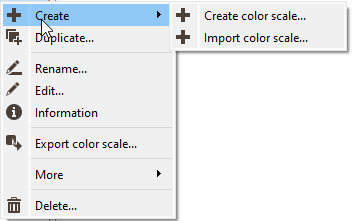
Right click a color scale to display the contextual menu:
-
Click Create /
 Create Color Scale to pop up the Color Scale Editor and create a new color scale.
-
Click Create / Import Color Scale to pop up the Color Scale Import task and import color scale(s) from another Isatis.neo project or coming from Studio RM (.elg files).
-
Click
 Duplicate to save a copy of the selected color scale.
 -
Click
 Rename and enter the new name for the highlighted color scale.
-
Click
 Edit to modify the highlighted color scale. The Color Scale Editor will pop up.
-
Click
 Information to display information (name, comment and application) in the Messages window.
-
Click
 Export to pop up the
Color Scale Export task and export the selected color scale(s).
Export to pop up the
Color Scale Export task and export the selected color scale(s).
-
Click More /
 Send to report to send the highlighted color scale to the Reporting Window.
-
Click More / Copy legend to clipboard to copy the current color scale in the clipboard. The clipboard may then easily be pasted to other applications (Word, PowerPoint, etc.).
-
Click
 Delete to definitely remove the highlighted color scale from the project.
