
Create a Work Package from Selected Tasks
You can define a work package manually using the Generate Work Packages/Tasks screen, or you can create one automatically, based on the tasks you have currently selected in the Tasks area.
To create a work package from selected tasks:
-
Display the Work Package ribbon.
-
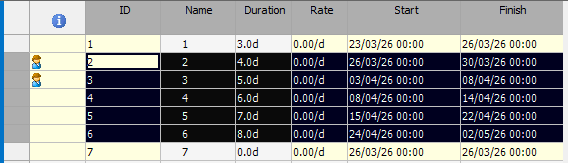
Select one or more tasks in the Tasks area so they are highlighted, for example:
-
On the Work Package ribbon, click Generate Tasks.
The Generate Tasks side bar displays.
-
On the Work Package ribbon, click Create Work Package.
A new work package item displays in the side bar, for example:
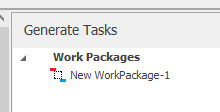
Note: This work package references the previously selected tasks and their associated type, resources and primary dependency. If no tasks were previously selected, an empty work package item would be created, which you could edit later.
-
As it is, the generated work package is "type 1", which means that when the package is added to the task list, it is added as a single work package that links between 2 selected tasks.
To change this (or any) work package setting:
-
Double click the work package item in the Generate Tasks side bar.
The Generate Work Packages/Tasks screen displays.
-
Edit the work package.
-
Click OK to update the work package.
-
-
Drag the work package from the Generate Tasks side bar to the location in the Tasks list at which the work package is triggered.
The Insert Work Package screen displays.
-
Click Insert.
-
Continuing the example, above, if the work package was edited to be "type 4" (replace the primary task with the work package), and dragged onto position 7 in the list, the result is:
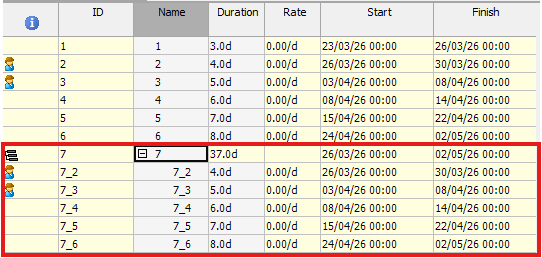
Tip: Work packages can be recognized by their unique icon in the information column of the Tasks list.
-
Save your project.
Related topics and activities:
