
Design Module Training Scenarios
Note: These training scenarios presume that you are working with the demo mine site database available with a new installation of DataBlast Ignite. For any fields described in the linked activities that you do not see described in the scenarios, it is ok to use the default values.
Organising Objects in the DataBlast Items Tree
1: Add a mine block called ARMON_PIT_A. We'll use this mine block just to organise the project, so you don't need to import or create any data for it at this stage. Exit mine block maintenance. See Add a Mine Block.
2: Under the mine block called ARMON_PIT_A, add a folder called Block 4. See DataBlast Items Tree.
Importing Topographies and Block Boundaries
3: Under the folder called Block 4, add a surface called Topo_Pos01. Load the external drawing file called DB_Topo_0219tr.dm. This file is a triangulation and requires the related points file called DB_Topo_0219pt.dm. Save changes and exit surface maintenance. This surface is the topography of our mine pit. See Add a Surface and Load an External Drawing File.
4: Under the folder called Block 4, add a set of design lines called RL2150_B04.dxf. Load the external drawing file called Block04.dxf, save changes and exit design line maintenance. This set of design lines defines the boundary of the mine block. See Add a Set of Design Lines and Load an External Drawing File.
Designing a Drill Pattern
5: We will limit our drill hole projections from the topography to a target relative level (RL) that we will define numerically. It is also possible to use detailed surfaces for all projection targets. Read about surface types in Drill Pattern Design.
6: Under the folder called Block 4, add a drill pattern called 2150_B04 with the drill pattern type of Production. See Design a Drill Pattern.
7: Our collar target is the topography, and we will select that surface in the next scenario. Set the toe target to a fixed RL of -20. Save changes. See Define Fixed Targets.
8: Assign the topography as the collar surface. Save changes. See Assign Surfaces to a Drill Pattern.
9: Hide the topography (in the DataBlast Items Tree) and the collar surface (layer) so that only the polygon displays in the Viewport. Zoom out to the extent of the polygon. See Layers Toolbar (Drill Pattern Designer) and View Toolbar.
10: Create a grid of holes such that the numbering starts at the bottom-left corner of the RL2150_B04.dxf design lines, assuming you are viewing it from above. (The coordinates are 6015.2 E, 5169.1 N.) The numbering goes in the direction of the bottom-right corner (6120.2 E, 5168.9 N).
Stagger the 89 mm diameter holes and make them 4 m apart with a minimum length of 1 m. Make the starting angle 15° to the horizon. Label the holes numerically with a minimum of two digits. When asked to select the direction for the hole toe, select outside the polygon; that is, below the bottom line. Save changes. See Create a Grid of Holes.
Zoomed in to the bottom-left corner and showing only the RL2150_B04.dxf design lines, the designed holes and the hole numbing, your drill pattern should look like the screenshot below. The collar of Hole 01 is at -10 RL and the toe is at -20 RL. These holes are our 'production' holes.
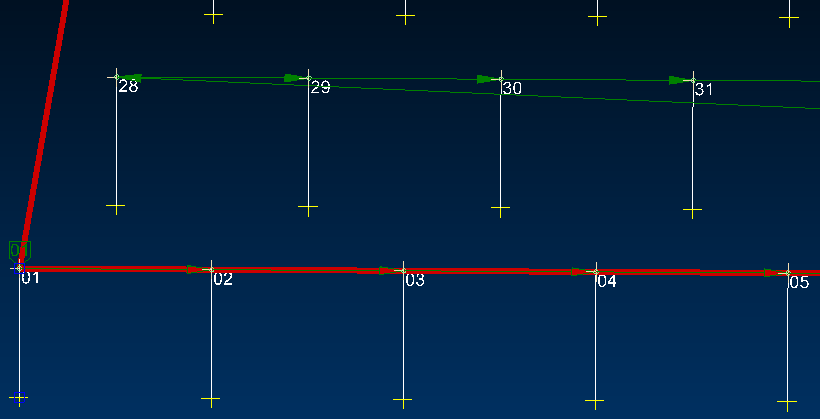
11: Still in the drill pattern design, draw a polyline along the back boundary of the RL2150_B04.dxf design lines; that is, from 6018.9 E, 5190.2 N, -10.0 RL to 6116.3 E, 5189.9 N, -10.0 RL. Save changes. Hide the RL2150_B04.dxf design lines. See CAD Tools Ribbon Menu.
12: Create a line of 89 mm holes along the new polyline, spaced at 1.2 m and angled at 15°. Make sure the holes have a minimum length of 1 m and give them a different collar icon to help distinguish them from the grid of holes. Make the hole numbering go from left to right and start numbering at 1000. Select the same direction for the hole bearing as for the grid of holes. Save changes. See Create a Line of Holes.
Zoomed in to the top-left corner and showing only the polyline, the designed holes and the hole numbing, your drill pattern should look like the screenshot below. The collar of Hole 1000 is at -10 RL and the toe is at -20 RL. These holes are our 'pre-split' holes.
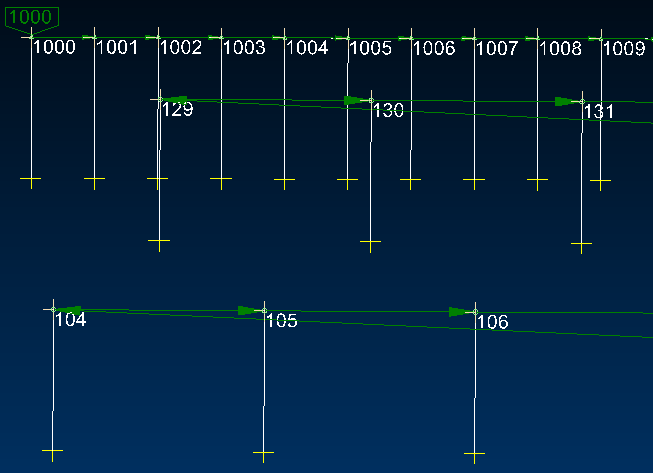
13: If we needed to add a standoff or subdrill, we could have entered offsets when creating the grid of holes. You can also adjust these properties in the Properties Pane for selected holes. Try this out, but don't save changes. See Select Objects in the Viewport and Hole Properties.
14: Remove the current hole numbering. Set the search distance to 1 m to make it easier to select single rows of holes. Number the production holes alphanumerically such that the front row is A and the numbers in each row start at 1 and ascend from left to right. Number the pre-split holes numerically with the prefix PS. See Customise Hole Numbering. Zoomed in to the top-left corner, your hole numbering should look like the screenshot below.
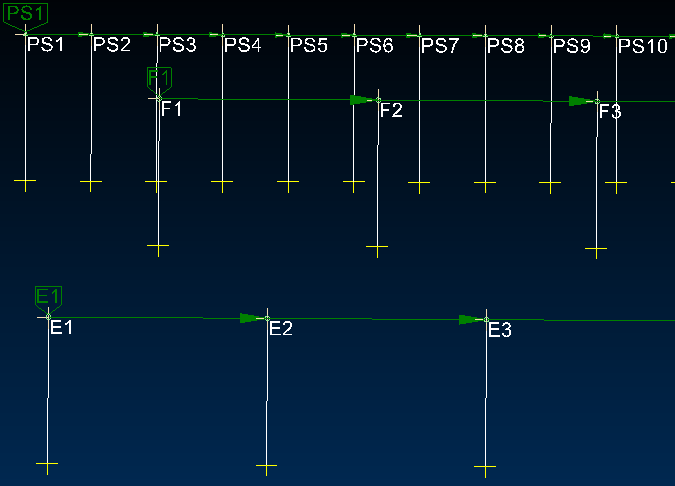
13: Check the burden distances for the row of holes closest to the front face of the topography. Exit the drill pattern design. See Burden Checking and Run a Burden Check.
14: Print the drill pattern. See Print Viewport Objects.
15: Print a drill sheet with information for all holes. See Make a Pattern Active and Generate and Print a Drill Sheet.
16: Export hole data to a CSV file. See Export Hole Properties.
