
Initiation Module Training Scenarios (Non-Electric)
1: For all the holes in the BP_2150_B04 blast pattern, create an initiation pattern called IN_2150_B04_1. Save changes. See Create an Initiation Pattern and Add or Remove Holes in an Initiation Pattern.
2: In the Detonator/Cord Selection screen, drag the EZTL 17, EZTL 25, EZTL 67, Lead Line and Primaline 10 products to the top of the screen. Move the Detonator/Cord Selection screen to the right-hand side of the user interface. See Dock or Move Panes.
3: Add two dummy holes to the left of the initiation pattern and set the one that is further away to be an initiation point. Use the (dark yellow) Lead Line product to connect the initiation point to the other dummy hole, and then the dummy hole to hole A1 and hole PS1. Save changes. See Tie up a Non-Electric Initiation Pattern.

4: Continue to tie up the initiation pattern. Set the auto search width to 0.8. Use the (yellow) EZTL 17 product to connect the row of holes from A1 to A27. Use the (blue) EZTL 67 product to connect the other production holes diagonally from row A; that is, connect A2 to B1, then A3 to B2 to C1, and so on. On the right-hand side of the initiation pattern, connect holes D25 to E25 to F24. Save changes.
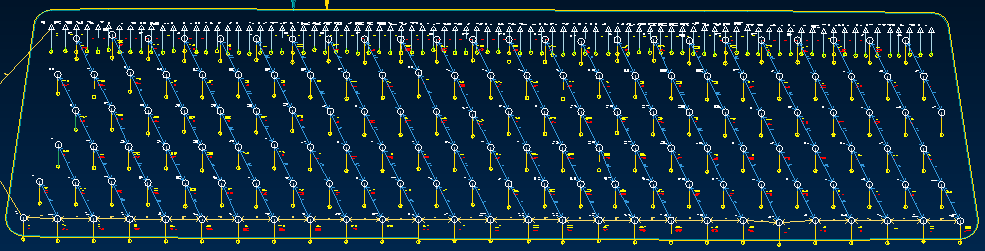
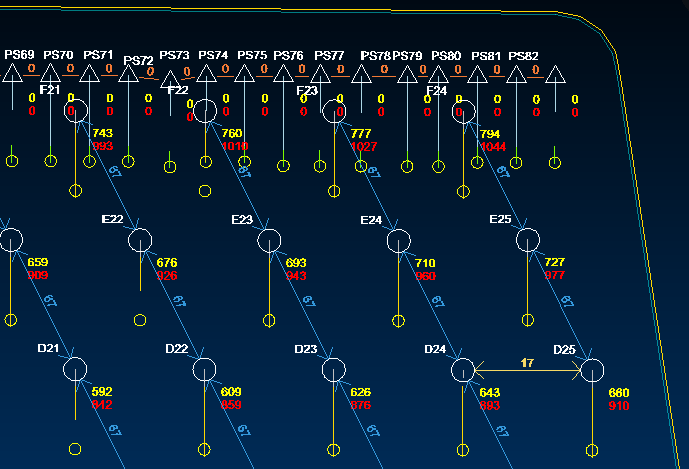
5: Continue to tie up the initiation pattern. Use the (yellow) EZTL 17 product to connect D24 to D25. Use the (orange) Primaline 10 product to connect the pre-split holes from PS1 to PS82. Double-check that only the pre-split holes are connected with NP10 because one of the production holes is quite close. Adjust the connections if required, and save changes. Save changes.
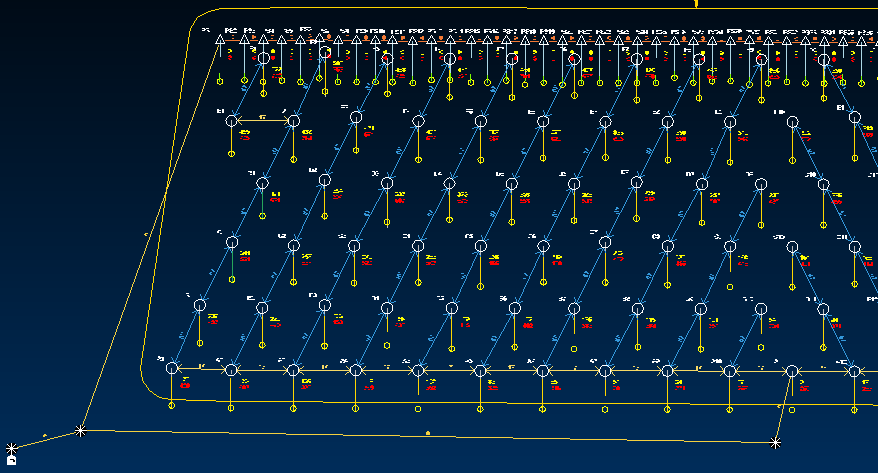
6: Copy the initiation pattern to create an alternative called IP_2150_B04_2. Add another dummy hole near hole A11 and change the connections from the dummy holes so that the initiation point is connected to A11 instead of A1. Change the direction of how the holes on the left-hand side are connected, as shown below. (Hole A11 is not connected to any hole in row B.) Remember to connect hole E2 to E1 on the left-hand side and save changes. See Copy an Initiation Pattern.
7: Analyse each initiation pattern. See Initiation Analysis, Run a Firing Simulation, View Blast Timing Contours, View Blast Relief Rates, View Decks per Delay and View Instantaneous Charge.
8: Compare the amount of vibration each initiation pattern produces. See Vibration Modelling and View Vibration Analysis.
